SSH into a Pi behind CGNAT#
A Pi in a greenhouse, a cabin or a client's office, on a network you don't control and can't port-forward. Here we get a real SSH session to it from anywhere, plus scp and VS Code Remote, without a VPN. Keys only, because a public SSH port gets scanned within the hour.
What you need#
- A Raspberry Pi on Raspberry Pi OS with the Tollan agent installed. Step 2 of Home Assistant from anywhere or the Quickstart cover the install.
- A laptop with OpenSSH (built into macOS, Linux and Windows 10/11).
How it works#
  laptop ──ssh──▶ <host>:<port>
                        ▲
                        │ the Pi connects out
  Raspberry Pi ─────────┘
    tollan-agent ──▶ SSH server :22
SSH gets a port route: its own public port that leads to port 22 on the Pi. SSH's own encryption runs end to end, so Tollan never sees inside the session.
Step 1: Make sure SSH is on#
On the Pi:
sudo systemctl enable --now ssh
ssh-keygen -lf /etc/ssh/ssh_host_ed25519_key.pub     # note this fingerprint
Write down that fingerprint. You'll compare it on first connect, and it's your proof you reached your Pi.
Step 2: Add a port route#
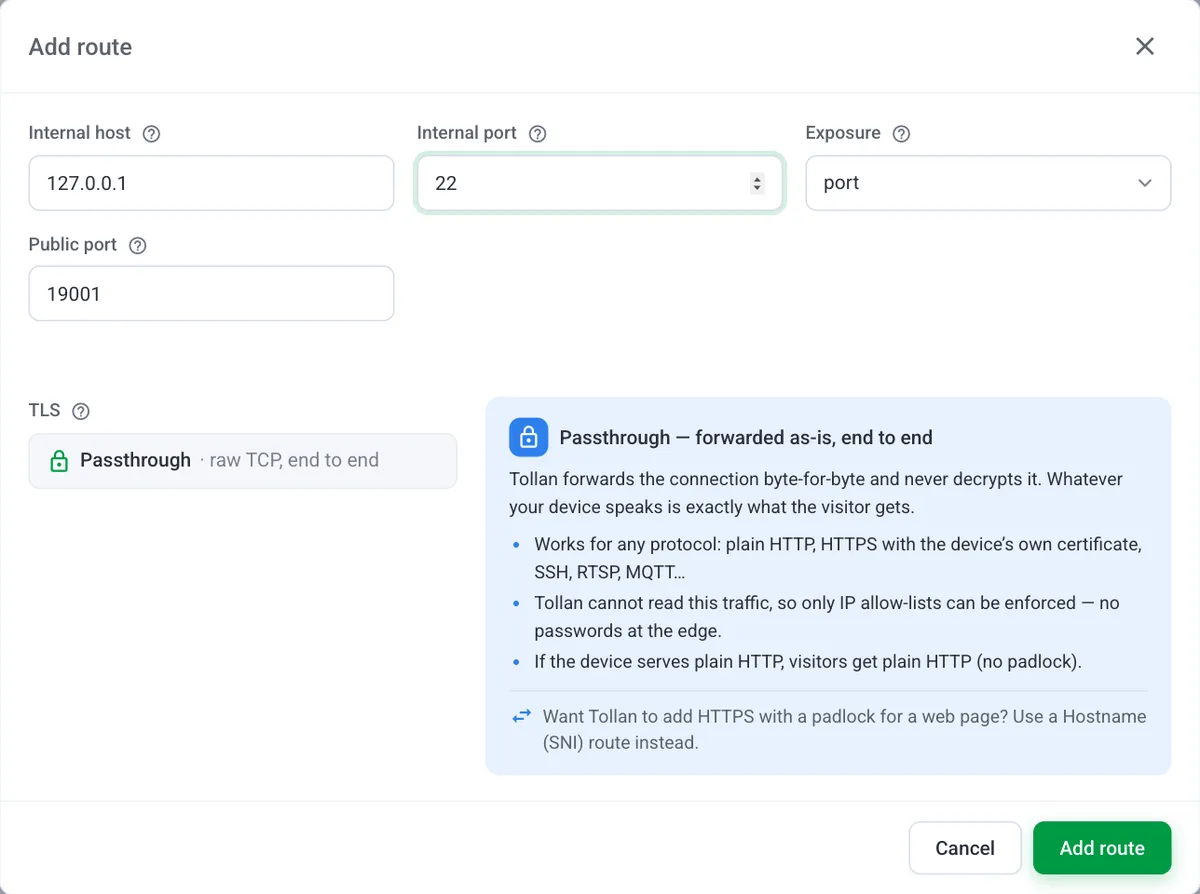
On the device page in the console, click Add route:
| Field | Value |
|---|---|
| Internal host | 127.0.0.1 |
| Internal port | 22 |
| Exposure | port |
The dialog picks a free public port and shows the host and port to connect to. Save it. Below, <host> and <port> stand for those two values.
Step 3: Keys first#
Copy your key to the Pi through the tunnel. This is the last time you'll type the Pi's password:
ssh-keygen -t ed25519                              # once, on the laptop
ssh-copy-id -p <port> pi@<host>                   # through the tunnel
Check the fingerprint it shows against the one from step 1, then log in to make sure the key works:
ssh -p <port> pi@<host>Step 4: Turn off passwords#
On the Pi, edit /etc/ssh/sshd_config (or add a file in /etc/ssh/sshd_config.d/) and set:
PasswordAuthentication noThen sudo systemctl restart ssh. Keep your current session open and test a new login before you log out, so a typo can't lock you out.
Step 5: Make the tunnel invisible#
Add this to ~/.ssh/config on the laptop:
Host greenhouse
    HostName <host>
    Port <port>
    User pi
Now the tunnel disappears behind an alias:
ssh greenhouse
scp logs.tgz greenhouse:~/
ssh -L 1880:localhost:1880 greenhouse      # Node-RED on the Pi at http://localhost:1880
VS Code's Remote - SSH extension reads the same file, so greenhouse shows up in its host list and you can edit code on the Pi directly.
Gotchas#
- Expect knocking. Bots scan every public port. With passwords off they get nowhere, but you'll see them in
journalctl -u ssh. If you always connect from the same place, add an IP allowlist: Password-protect a site shows how, and other addresses are cut off before they reach the Pi. - The free plan has two routes. SSH plus one web service (like Home Assistant) fills it. The
-Ltrick above reaches any other service on the Pi without spending a route. - Kill switch. The route's Enabled toggle takes effect at once. Flip it off when nobody needs in.
Where to take it next#
- Both ends are your own machines? Put them in a device group and SSH by internal name, with nothing public at all.
- More on SSH through Tollan, including SFTP and hardening: Accessing a host over SSH.