Home Assistant from anywhere#
The Pi running Home Assistant sits on a shelf behind a 4G router. The router has no public IP (carrier-grade NAT), so the usual "forward port 8123 and set up dynamic DNS" recipe is dead on arrival. Here we give it a real HTTPS address instead, by having the Pi dial out to Tollan and hold the connection open.
What you need#
- A Raspberry Pi 4 or 5 running 64-bit Raspberry Pi OS, with Docker installed.
- Home Assistant Container (the Docker image). If you run Home Assistant OS, see the note below.
- A free Tollan account in the console.
How it works#
  phone ──HTTPS──▶ ha-pi-byrne.a.tollan.app
                              ▲
                              │ the Pi connects out
  Raspberry Pi ───────────────┘
    tollan-agent ──▶ Home Assistant :8123
The Tollan agent on the Pi connects out to Tollan and keeps that connection open. Your address reaches Home Assistant through it, with an HTTPS certificate Tollan manages for you. Nothing on your router changes.
Step 1: Home Assistant on port 8123#
If Home Assistant is already up on http://<pi>:8123, skip ahead. Otherwise, this is the standard container setup:
docker run -d --name homeassistant --privileged --restart=unless-stopped \
  -e TZ=Europe/Dublin \
  -v /srv/homeassistant:/config \
  -v /run/dbus:/run/dbus:ro \
  --network=host \
  ghcr.io/home-assistant/home-assistant:stable
Give it a minute, open http://<pi-ip>:8123 on your LAN, and create your Home Assistant user. Check it answers locally on the Pi too:
curl -s -o /dev/null -w '%{http_code}\n' http://127.0.0.1:8123 # 200Step 2: Put the agent on the Pi#
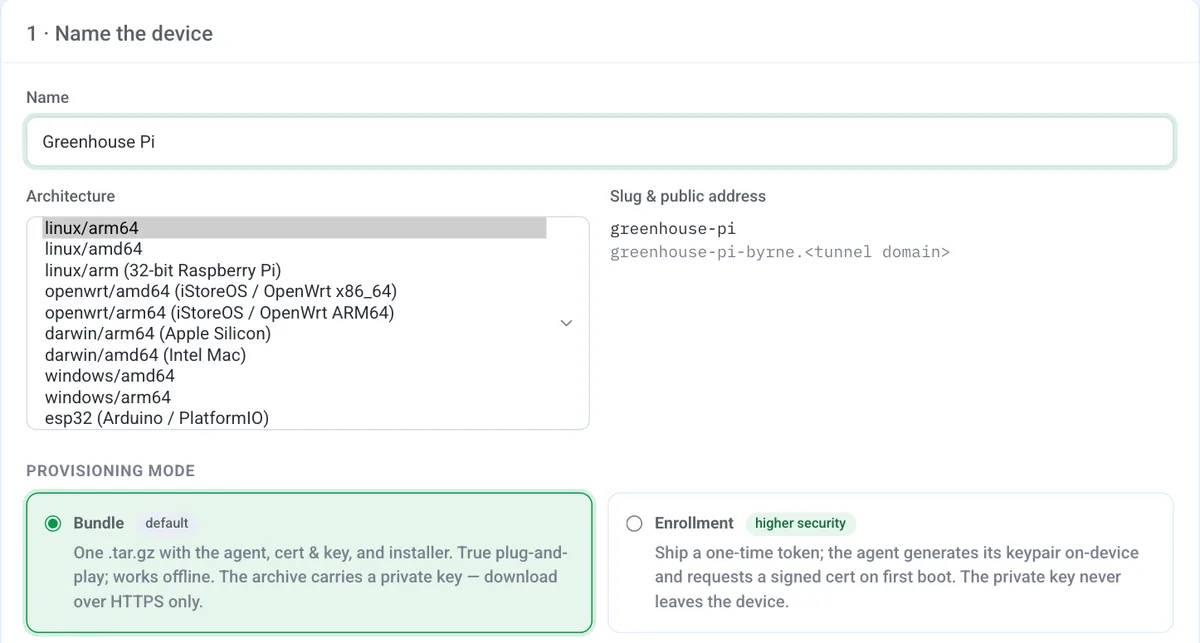
In the console, add a device:
- Name:
ha-pi - Architecture:
linux/arm64(uselinux/armfor 32-bit Raspberry Pi OS)
Build its bundle on the device page, copy it across and install it:
scp tollan-ha-pi-linux-arm64.tar.gz pi@<pi-ip>:
ssh pi@<pi-ip>
tar -xf tollan-ha-pi-linux-arm64.tar.gz
cd tollan-ha-pi
sudo ./install.sh
systemctl status tollan-agent      # active (running)
The device flips to online in the console within a few seconds.
Important
The bundle download link is single-use and expires after about 15 minutes, and the private key inside is the device's identity. Install it, then delete the archive.
Step 3: Add the route#
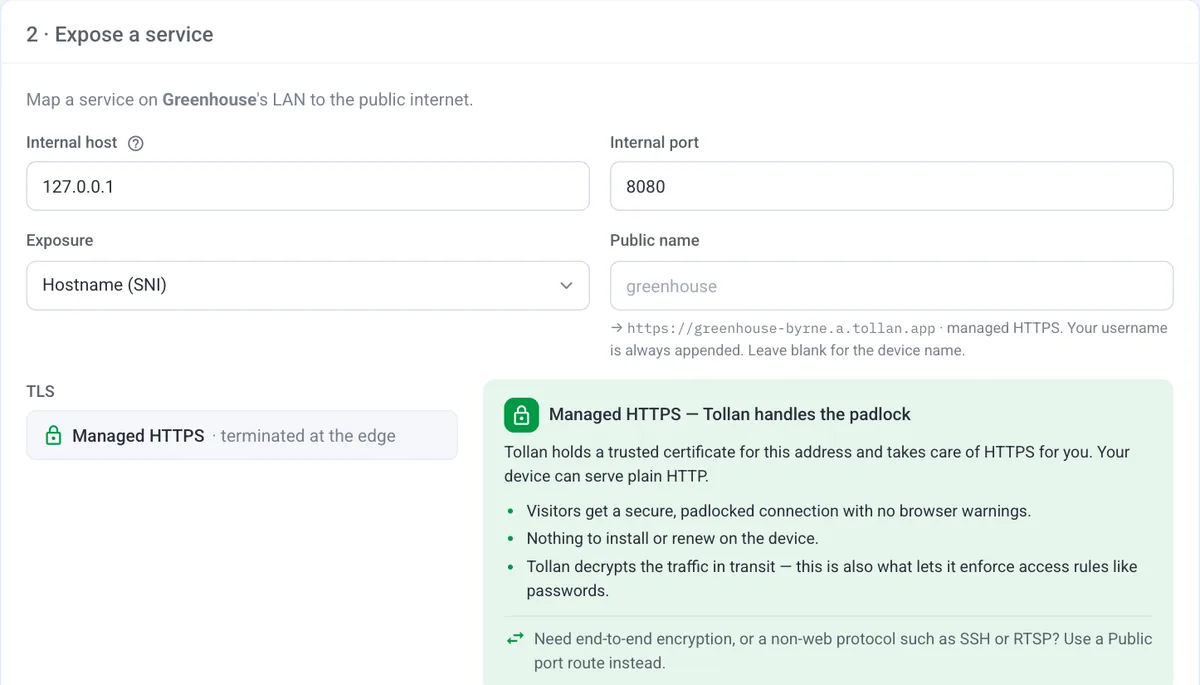
On the device page, click Add route:
| Field | Value |
|---|---|
| Internal host | 127.0.0.1 |
| Internal port | 8123 |
| Exposure | sni |
The dialog previews the public address, something like ha-pi-byrne.a.tollan.app (device name, then your username), and shows the TLS mode as Managed HTTPS: the certificate is handled for you. Save it. The route is live as soon as it is saved.
Step 4: Try it from your phone#
Turn off Wi-Fi on your phone and open https://ha-pi-byrne.a.tollan.app. On the free plan you first get a short Tollan notice; tap Continue and you land on the Home Assistant login. Live updates work just as they do at home.
Then tell Home Assistant its own address under Settings ▸ System ▸ Network ▸ Home Assistant URL ▸ Internet, and use the same address as the server in the Companion app.
Gotchas#
- No reverse-proxy config needed. Leave
use_x_forwarded_forandtrusted_proxiesout ofconfiguration.yaml. The flip side: Home Assistant sees every remote visitor as127.0.0.1, the agent on the same Pi. - That makes two settings dangerous. Never list
127.0.0.1or::1under thetrusted_networksauth provider, or anyone with the address skips the login. And leavelogin_attempts_thresholdunset: a few bad passwords from anywhere would ban127.0.0.1, which is everyone, you included. - Turn on two-factor authentication in your Home Assistant profile. The address is public, so treat the login like any other internet login.
Running Home Assistant OS#
Home Assistant OS doesn't let you install system services, so the agent can't run on it. Run the agent on another machine on the same network (a second Pi, a NAS, an old laptop) and point the route's Internal host at the Home Assistant box, for example 192.168.1.40. Reaching another host like this is forwarding, which needs a paid plan; A machine’s web screen shows the same pattern.
Where to take it next#
- Put a password and an IP allowlist in front of it: Password-protect a site.
- Use the free plan's second route for a shell: SSH into a Pi behind CGNAT.
- Node-RED or Grafana on the same Pi? Same recipe, different internal port:
1880or3000.