Password-protect a site#
You've built something and it has a public address. Before that link goes in a group chat, put a lock on it. Tollan checks the lock before forwarding anything, so a visitor without the password never reaches your Pi or ESP32 at all. That matters for a microcontroller that can't do much about a flood of requests on its own.
What you need#
- A device with a working sni route, such as the ESP32 sensor dashboard or Home Assistant. The examples use
greenhouse-byrne.a.tollan.app; use your own address.
How it works#
  visitor ──HTTPS──▶ Tollan: IP allowed? password right?
                       ├── yes ──▶ your device
                       └── no ───▶ 403 or a login prompt;
                                   your device never sees it
Routes on your a.tollan.app address use managed HTTPS, so Tollan can check the visitor's IP address and password before forwarding anything. You can stack rules, and a visitor must pass all of them.
Step 1: Open the route's security settings#
On the device page in the console, find the route in the Routes table and click Security.
Step 2: Add a password#
Under Add a rule to this route:
- Type: Basic auth (username + password).
- Click + Add user and enter a username and password. Add one user per person, so you can remove one later without changing everyone's password.
- Click Add rule.
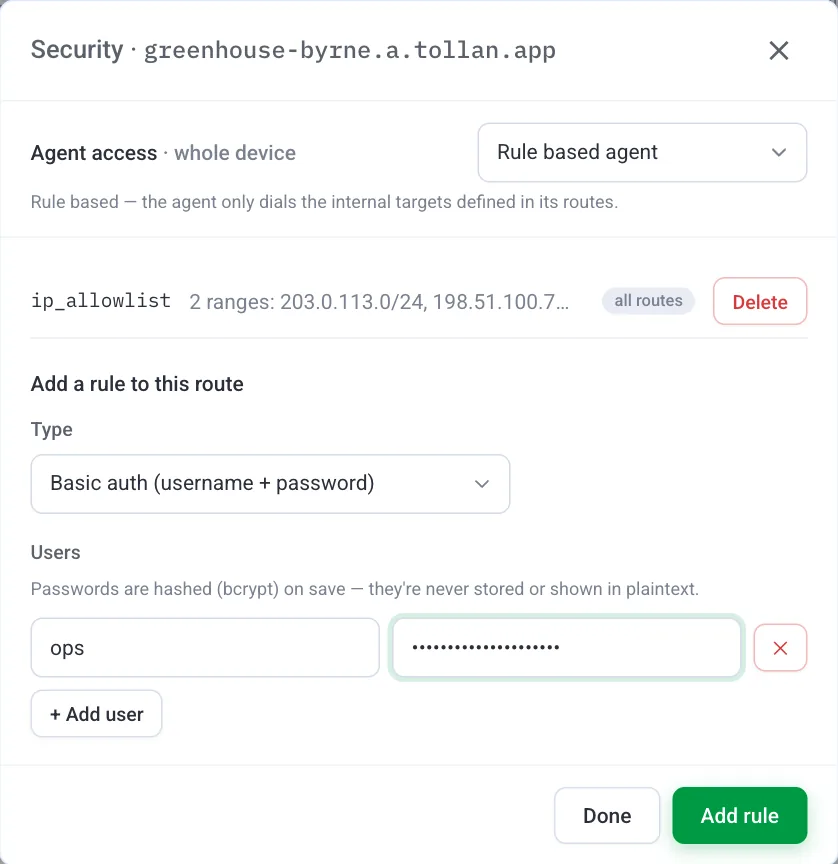
The rule takes effect within seconds. Check it:
curl -s -o /dev/null -w '%{http_code}\n' https://greenhouse-byrne.a.tollan.app/api
401
curl -s -o /dev/null -w '%{http_code}\n' -u maria:'correct-horse' https://greenhouse-byrne.a.tollan.app/api
200
In a browser you now get the standard login prompt first. Passwords are stored hashed; nobody can read them back out of the console, so keep your own copy.
Step 3: Add an IP allowlist#
If you always visit from the same places, such as home and the office, allow only those. Find your public address:
curl https://ifconfig.me
203.0.113.7
Back under Security, add a rule:
- Type: IP allowlist.
- Enter
203.0.113.7/32(/32means exactly this address), and + Add range for each other place. - Click Add rule.
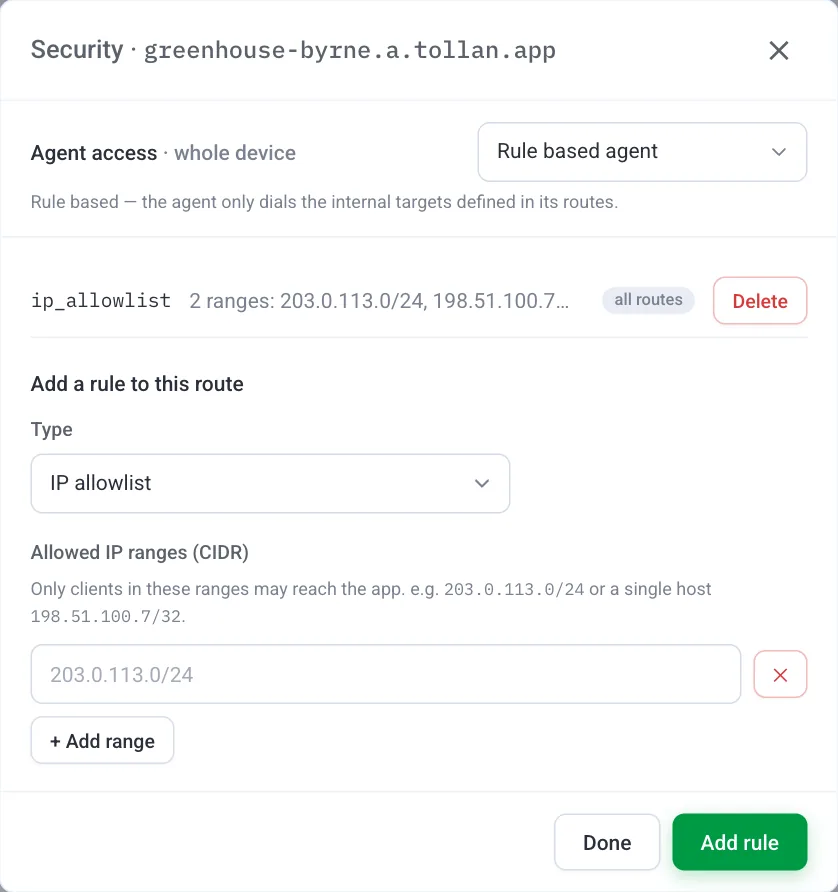
Visitors from anywhere else now get 403 before the password prompt even appears.
Note
Phones on mobile data change public address all the time, so an allowlist locks them out. For a route you open from your phone, use the password on its own.
Which rules work where#
| Route | Password (basic auth) | IP allowlist |
|---|---|---|
sni on your a.tollan.app address | Yes | Yes |
port (SSH, databases, HTTPS passthrough) | No: the traffic stays encrypted end to end | Yes: other addresses are cut off |
On a port route, rely on the service's own login, such as SSH keys in SSH into a Pi behind CGNAT, and add the IP allowlist on top.
Gotchas#
- Apps need the password too. A phone app or script that calls the address has to send the same username and password. If it can't, give it the IP allowlist alone, or its own route.
- Locked yourself out? Rules are edited in the console, not at the address, so you can always remove one from Security.
- Kill switch. Need it offline right now? The route's Enabled toggle takes effect at once, and nothing is deleted.
Where to take it next#
- Every rule type and where each is enforced: Access control.
- Back to the builds: All tutorials.